

The Exe File is A False Positive
Information
# ⚡ Attract-Mode Plus — Layout Designer
A visual drag-and-drop layout builder for **Attract-Mode Plus** frontends.
Build, preview, and export `layout.nut` files without writing Squirrel script by hand.
**Version 6.8**
---
## Requirements
```
Windows 10/11
```
| Package | Purpose |
|---|---|
| `customtkinter` | Modern themed UI widgets |
| `pillow` | Background reference images + image/preview rendering |
| `tkinterdnd2` | Drag-and-drop files onto the canvas *(optional — button fallback included)* |
| `opencv-python` | Extract first frame from video files for canvas preview *(optional)* |
Run with:
```
Attract-Mode Plus - Layout Designer-TKK.exe
```
Place these files in the same folder as the script for full docs support:
```
Layouts.md ← AM+ Layout & Plug-in Programming Reference
Manual.md ← Attract-Mode Plus user manual
Readme.md ← AM+ quickstart & configuration guide
```
---
## Interface Overview
```
┌──────────────────────────────────────────────────────────────────────┐
│ Menu bar: File · Edit · View · Tools · Help │
│ Toolbar: Load .nut · Save .nut · Clear · Preview · Theme │
│ Res bar: W · H · Presets · Zoom │
├────────────────┬──────────────────────────────┬──────────────────────┤
│ Left panel │ Canvas (preview) │ Right panel │
│ · Elements │ │ · Properties │
│ · Modules │ │ · layout.nut │
│ · Snippets │ │ │
└────────────────┴──────────────────────────────┴──────────────────────┘
```
---
## Menu Bar
### File
| Item | Shortcut | Action |
|---|---|---|
| New Layout | `Ctrl+N` | Clear all elements and reset |
| Load .nut… | `Ctrl+O` | Load an existing layout.nut file |
| Save .nut | `Ctrl+S` | Save the current layout code |
| Layout Info… | | Set name, author, version, date, notes for the file header |
| ▶ Preview in AM+ | | Launch Attract-Mode Plus with the current layout |
| Exit | | Close the application |
### Edit
| Item | Shortcut | Action |
|---|---|---|
| Duplicate Element | `Ctrl+D` | Clone the selected element |
| Delete Element | `Del` | Remove the selected element |
| Bring Forward / Send Backward | | Adjust z-order by 1 |
| Clear All Elements | | Remove everything from the canvas |
### View
| Item | Action |
|---|---|
| Choose Theme… | Open the 8-theme colour picker |
| Load BG Image… | Load a PNG/JPG reference image behind the canvas |
| Clear BG Image | Remove the background reference image |
### Tools *(advanced — kept out of the main UI for novice clarity)*
| Item | Action |
|---|---|
| Romlist Editor… | Full romlist editor in its own resizable window |
| CFG Generator… | Per-game emulator config generator |
| Edit attract.cfg… | Direct editor for the main AM+ config file |
| Reference… | Searchable Squirrel + AM+ API reference |
| AM+ Docs… | Renders Layouts.md / Manual.md / Readme.md |
| Snippet Manager… | Browse and insert reusable code snippets |
### Help
| Item | Action |
|---|---|
| Help & Reference | Built-in help popup |
| Check for Updates / Website | Opens your project website |
| About | Version, credits, website link |
---
## Toolbar
Five core buttons always visible:
| Button | Shortcut | Action |
|---|---|---|
| 📂 Load .nut | `Ctrl+O` | Load a layout file |
| 💾 Save .nut | `Ctrl+S` | Save the layout code |
| 🗑 Clear | | Remove all elements |
| ▶ Preview | | Launch AM+ with the current layout |
| 🎨 Theme | | Choose a colour theme |
> All toolbar buttons have **hover tooltips** that stay on screen even in fullscreen — they flip left or above the cursor automatically if they would overflow the screen edge.
---
## Resolution Bar
- **W / H** — type the layout width and height directly
- **Presets** — dropdown: 640×480 up to 3840×2160
- **Canvas Zoom** — slider to scale the preview (0.1–1.0)
---
## Canvas
The centre panel is a live **scaled preview** of your layout.
| Action | Result |
|---|---|
| Click an element | Select it |
| Drag an element | Reposition it |
| Drag the orange corner handle | Resize it |
| Right-click an element | Context menu — delete, duplicate, z-order |
### Background Reference Image
Drop a PNG/JPG screenshot of your cabinet onto the canvas as a visual guide — it does **not** affect the generated `.nut` code.
| Control | Action |
|---|---|
| 📂 Load BG Image | File dialog — pick any PNG/JPG |
| View > Load BG Image… | Same via menu |
| Show BG checkbox | Toggle visibility |
| Opacity slider | 0–100%, default 40% |
| 🗑 Clear BG | Remove the image |
| Drag image onto empty canvas | Loads as BG reference |
> **Drag-and-drop smart routing:**
> - File dropped onto canvas with **no element selected** → loads as background
> - File dropped onto canvas with a **visual element selected** → assigned as that element's canvas preview
---
## Left Panel
### Elements Tab
Click a type row to select it, then click **+ Add Element** to place it.
Hover a row for a description tooltip. The selected type stays highlighted until you pick another — no auto-highlight on startup.
Each row shows the radio button dot, a fixed-width icon, and the type name all in a clean aligned column.
| Type | Description |
|---|---|
| `artwork` | Generic artwork slot (custom path name) |
| `boxart` | Box / cover artwork |
| `fanart` | Fan-made background art |
| `flyer` | Promotional flyer artwork |
| `image` | **Static PNG/JPG** — frames, overlays, bezels, logos |
| `marquee` | Arcade cabinet marquee strip |
| `shader_layer` | GLSL shader effect overlay |
| `snap` | Current game screenshot |
| `surface` | Layered offscreen render surface |
| `text` | Meta token or custom string |
| `video` | Video preview clip |
| `wheel` | Game logo / wheel art |
**Element List** — shows all placed elements with buttons:
| Button | Action |
|---|---|
| ↑ / ↓ | Change z-order |
| ⊕ Dupe | Duplicate selected element |
| ✕ Del | Delete selected element |
> The panel is split by a draggable sash — resize the type picker vs the list independently.
---
### Modules Tab
Check any module to include `fe.load_module("name")` in the output.
Hover a module name to see its description in a tooltip — the tooltip also shows the `.nut` filename. Selected rows stay highlighted.
---
### Snippets Tab
Browse and insert reusable `.txt` code snippets.
| Control | Action |
|---|---|
| 📂 Open Folder | Load a folder of `.txt` snippet files |
| 🔄 Reload | Refresh the file list |
| Category buttons | Filter: All / wheel / snap / meta / text / other |
| 🔍 Search | Filter by filename |
| Single-click | Preview with syntax highlighting |
| Double-click | Insert into layout.nut |
| ⎘ Insert | Insert selected snippet |
| 📋 Copy | Copy to clipboard |
| 📄 Open | Open file in default editor |
**IN LAYOUT** section tracks added snippets. Double-click to edit, ✕ to remove.
> A `snippets/` folder next to the script is auto-loaded on startup.
> All three panes (list / preview / added) have draggable sashes.
---
## Right Panel
### Properties Tab
All fields update `layout.nut` live as you edit.
#### Position & Size
`Name` · `X` · `Y` · `Width` · `Height` · `Rotation` · `Z-Order`
> Z-Order is written to the `.nut` file and controls draw order.
#### Code Style *(new)*
Per-element control over how the constructor line is written:
**Coordinates** dropdown:
- `dynamic` (default) — uses `flw`/`flh` expressions: `fe.add_artwork("snap", flw*0.339, flh*0.028, flw/3, flh*0.444);`
- `pixels` — raw numbers: `fe.add_artwork("snap", 0, 0, 1920, 1080);`
**Constructor (optional)** — override the function name:
- Leave blank → standard `fe.add_artwork` / `fe.add_text` / `fe.add_image` / `fe.add_surface`
- Type `FadeArt` → `local snap = FadeArt("snap", 0, 0, 1920, 1080);`
Each element has its own setting — mix and match across the layout.
#### Image File *(image type only)*
- File path entry + **Browse** button
- Or drag a PNG/JPG onto the canvas while an image element is selected
#### Canvas Preview *(all visual types)*
Display-only preview — **never written to `.nut`**.
Supported on: `snap` · `video` · `boxart` · `marquee` · `wheel` · `flyer` · `fanart` · `artwork` · `image`
| Method | Action |
|---|---|
| Browse button | Pick any PNG/JPG/MP4/AVI/MKV/MOV... |
| Drag file onto selected element | Assign directly on the canvas |
| ✕ Clear Preview | Remove the preview image |
> **Video preview** extracts the first frame using OpenCV (`pip install opencv-python`).
> If OpenCV is not installed, a hint appears in the element box.
#### Snap / Video Transforms *(snap and video only)*
| Field | Example |
|---|---|
| Pinch X | `0.3` — pinch corners horizontally |
| Pinch Y | `0.3` — pinch corners vertically |
| Skew X | `0.2` — skew horizontally |
| Skew Y | `0.1` — skew vertically |
#### RGB Tint *(snap, video, image)*
`Red` · `Green` · `Blue` — 0–255. Default `255,255,255` = no tint (omitted from `.nut`).
#### Appearance
`Alpha (0–255)` · `Blend Mode` · `Visible` · `Preserve Aspect Ratio` · `No Audio`
#### Text *(text type only)*
**Meta Token** dropdown — all AM+ magic tokens:
| Category | Tokens |
|---|---|
| Game info | `[Title]` `[TitleFull]` `[Year]` `[Manufacturer]` `[Category]` `[Players]` `[Rating]` `[Series]` `[RomName]` `[CloneOf]` `[AltTitle]` `[Language]` `[Region]` `[Status]` `[Control]` `[PlayedCount]` `[PlayedTime]` `[EmulatorName]` `[SystemName]` |
| Navigation | `[ListSize]` `[ListEntry]` `[FilterName]` |
| Clock | `[!%H:%M]` `[!%H:%M:%S]` `[!%d/%m/%Y]` `[!%A, %d %B %Y]` |
| Screen | `[ScreenWidth]` `[ScreenHeight]` |
| Custom | `-- custom --` *(reveals a free-text entry)* |
**Font** — editable dropdown of 35 fonts across 5 categories (sans-serif, serif, monospace, arcade/display, pixel/retro). Type any custom name.
**Font Size** — dropdown (12–128), also editable.
**Align** · **Font Color** picker
#### Animation
`Enable Animation` · `Trigger` · `Duration (ms)`
---
### layout.nut Tab
Live-updating Squirrel code with syntax highlighting.
| Button | Action |
|---|---|
| 📋 Copy | Copy all code to clipboard |
| 💾 Save .nut | Save to a file |
| ▶ Preview | Launch AM+ with the current layout |
| ↺ Regenerate | Rebuild code from visual elements *(discards manual edits)* |
| 🏷 Layout Info | Set name, author, version, date, notes |
| Auto-update | Toggle live regeneration from property changes |
> Once you type in the code editor, auto-update stops overwriting. Click **↺ Regenerate** to go back to auto-generated code.
#### 🏷 Layout Info header
```squirrel
//////////////////////////////////////////////////////////////
// My Arcade Layout
// Author : JJTheKing
// Version : 1.0
// Date : 04-30-2026
// Notes : 16:9 widescreen layout
// Generated by Attract-Mode Plus Layout Designer
//////////////////////////////////////////////////////////////
```
**Today** button fills the date automatically. Live preview updates as you type.
---
## Tools Menu Windows
All tools open in their own full-size resizable popup windows.
### Romlist Editor
| Feature | Details |
|---|---|
| 📂 Open / 💾 Save / Save As | Load and write `.romlist` files |
| ✎ Bulk Edit | Set an entire column to one value |
| + Add Row / ✕ Del Row | Add or remove entries |
| 🔍 Search | Filter rows live |
| Double-click cell | Edit inline |
| Right-click | Bulk edit column shortcut |
### CFG Generator
Generates an `attract.cfg` emulator entry block.
| Field | Notes |
|---|---|
| Emulator | MAME, RetroArch, or Other |
| System | Pre-filled list per emulator |
| ROM Extensions | e.g. `.zip .7z` |
| Executable / Args | For Other emulator type |
| Artwork Folders | Checkboxes with All/None shortcuts |
| `nb_mode_wait` | e.g. `10` |
| `import_extras` | e.g. `$PROGDIR\extras\extras.txt` |
Preview is **editable** before saving. Click **↺ Regenerate** to rebuild.
Emulator website links: MAME · RetroArch · PCSX2 · RPCS3 · Dolphin · Cemu · Ryujinx · Duckstation · PPSSPP · FBNeo · ScummVM · DOSBox
### Edit attract.cfg
Direct editor for the main `attract.cfg` file.
| Feature | Details |
|---|---|
| Auto-detect | Opens `config/attract.cfg` next to the script automatically |
| Browse… | Locate the file manually |
| Quick Add presets | One-click buttons: Fullscreen · Windowed · Volume · Brightness · Smooth Images · V-Sync |
| Manual entry | Type any option key + value and click Add |
| 💾 Save | Write changes directly to attract.cfg |
| ↺ Defaults | Reset to default options |
### Reference
Searchable Squirrel + AM+ API reference with syntax-highlighted examples.
**⎘ Insert** puts a snippet directly into the layout.nut editor.
**Categories:**
- AM+ fe.* API
- AM+ Object Properties
- AM+ Enums & Constants
- AM+ Magic Tokens
- AM+ Filters & Rules
- AM+ Artwork System
- Squirrel: Variables & Types
- Squirrel: Control Flow
- Squirrel: Functions & Classes
- Squirrel: Built-in Functions
### AM+ Docs
Renders the official AM+ markdown documentation files. Auto-detects files next to the script.
**Dropdown picker** — switch between loaded docs instantly:
- `Layouts.md` — Layout & Plug-in Programming Reference
- `Manual.md` — Full user manual (controls, emulators, romlists, filters, artwork)
- `Readme.md` — Quickstart & basic configuration guide
📂 Load File button browses to any other markdown file.
Sections listed on the left, searchable content on the right.
### Snippet Manager
Same as the Snippets tab in the left panel — available as a full-size popup for more room.
---
## ▶ Preview
Launches **Attract-Mode Plus** with your current layout — no manual save needed first. The code editor's current content (including any manual edits) is what gets written.
### Setup
**Option A** — drop `RunMe.exe` into the `preview/` folder next to the script. Auto-detected, zero configuration.
**Option B** — click ▶ Preview, use the Browse dialog to locate `RunMe.exe`. Path is saved to `preview/attract_exe.cfg` for future sessions.
### Folder structure
```
preview/
RunMe.exe ← AM+ binary
layouts/
test/ ← created automatically
layout.nut ← written fresh on every preview
romlists/ ← optional test romlists
```
> The layout folder name is taken from where you last saved your `.nut` file, defaulting to `test`.
---
## 🎨 Themes
8 colour schemes — **View > Choose Theme** or the toolbar button.
Active theme marked with **✓**. Displayed in a 2-column grid with 7 colour swatches per card.
| Theme | Style |
|---|---|
| Arctic Light | Light blue-grey — default |
| Slate Pro | Dark blue-grey |
| Cyan Night | Dark with cyan accents |
| Amber Dark | Dark with amber/orange |
| Green Matrix | Dark green terminal style |
| Purple Haze | Dark with purple/pink |
| Red Alert | Dark with red accents |
| Warm Mocha | Dark warm brown/tan |
Each theme automatically switches CTK between light and dark appearance mode.
---
## Output
Save your `layout.nut` and place it in:
**Windows:**
```
%USERPROFILE%\AppData\Roaming\attract\layouts\YOUR_LAYOUT_NAME\layout.nut
```
---
## Setting Your Website URL
Open the script and update line 15:
```python
VERSION = "6.8"
UPDATE_URL = "https://free-3980544.webador.com/am-updates"
```
**Help > Check for Updates / Website** opens this URL in the browser.
**Help > About** shows the version number and a Visit Website button.
---
## Drag-and-Drop Summary
| What you drag | Where | Result |
|---|---|---|
| PNG / JPG | Canvas — no element selected | Loads as BG reference image |
| PNG / JPG | Canvas — visual element selected | Assigned as canvas preview for that element |
| PNG / JPG / MP4 | Canvas — `image` element selected | Assigned as the element's `image_path` (written to `.nut`) |
| PNG / JPG / video | Properties > Canvas Preview > Browse | Preview assigned via file dialog |
> Requires `tkinterdnd2` installed. Button fallbacks always available.
---
## Credits
Built with ❤️ by **JJTheKing**
AI assistance: Claude Ai & DeepSeek Ai
Wheel code snippets: **Tankman3737**
Feedback: **Oomek**
Feedback: **Chadnaut**
Feedback: **PaCiFbAllA**
Version 6.8 (06/29/2026)
Updated 06-29-2026
Version 6.8
New CODE STYLE section in Properties (right under Position & Size) for every element type:
Coordinates dropdown:
dynamic (default) → local snap_4512 = fe.add_artwork("snap", flw*0.339, flh*0.028, flw/3, flh*0.444);
pixels → local snap = fe.add_artwork("snap", 0, 0, 1920, 1080);
Constructor field — type any custom function name to replace the default:
Leave blank → uses standard fe.add_artwork / fe.add_text / fe.add_image / fe.add_surface automatically based on element type
Type FadeArt → local snap = FadeArt("snap", 0, 0, 1920, 1080);
Both settings are per-element — so you can mix and match across your layout, e.g. snap and video using FadeArt(...) with raw pixels, while text elements stay on fe.add_text(...) with dynamic flw/flh expressions.
The choice is saved with the element and restored correctly when you click it again, and updates the live code immediately.
New Installer
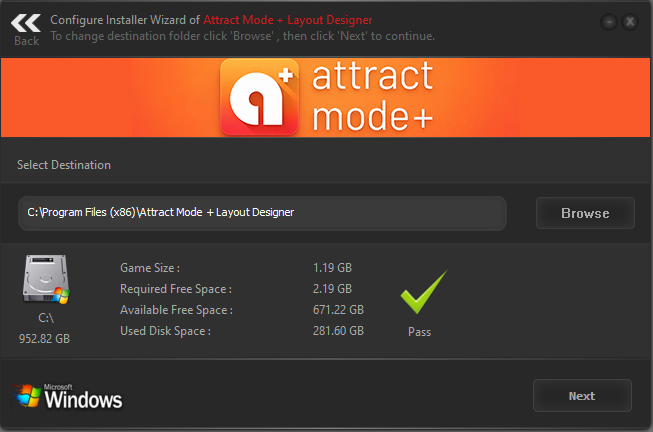
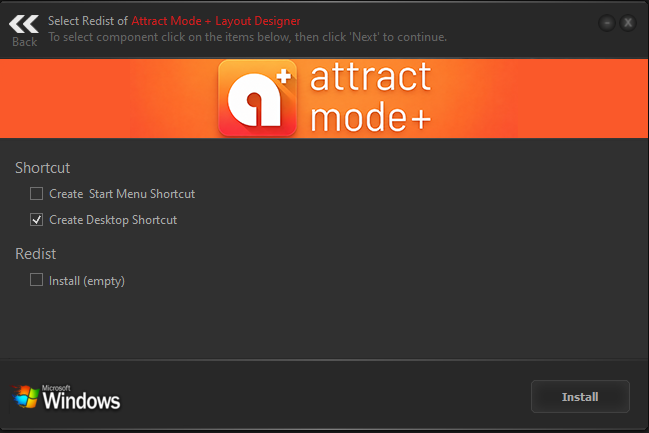
Remember To Accept Setup.exe , RunMe.exe & attractplus.exe (False Positive)
Create Your Own Website With Webador